Wireless network adapters will not natively work with Hyper-V, but I found the following solution on the internet, from "Virtual PC Guy's Blog" and it works very well for me:
http://blogs.msdn.com/b/virtual_pc_guy/archive/2008/01/09/using-hyper-v-with-a-wireless-network-adapter.aspx
Showing posts with label Windows Server 2008. Show all posts
Showing posts with label Windows Server 2008. Show all posts
Wednesday, July 27, 2011
Wednesday, July 20, 2011
Enable Aero desktop on Server 2008 r2
To install Desktop Experience in Windows Server 2008 R2
- Click Start, click Control Panel, and then, under Programs, click Turn Windows Features on or off.
If you're prompted for an administrator password or confirmation, type the password or provide confirmation.
- In the Features Summary section, click Add Features.
- Select the Desktop Experience check box. If you are prompted to install additional features, click Add Required Features, and then click Next.
- Click Install. You might be prompted to restart your computer.
To enable the Themes service in Windows Server 2008 R2
- Click Start, point to Administrative Tools, and then click Services.
- Double-click Themes.
- In the Startup type list, select Automatic, and then click Apply.
- Under Service status, click Start, and then click OK.
To select an Aero theme
- Right-click an open area of the desktop, and then click Personalize.
- Click Themes.
- Under Aero Themes, click an Aero theme.
gfxUI.exe is stopped working
Issue when running Windows Server 2008 r2 (x64) on Intel Motherboard, with both .net 4 as well as 3.5 installed.
Description:
Stopped working
Problem Signature:
Problem Even Name: APPCRASH
Application Name: GfxUI.exe
....
The following worked for me it seems that the Intel driver requires .net 3.5 to be enabled on the server.
In Server Manager > Features > Add Features
In the list of features to install on this server, select .NET Framework 3.5.1 Features
I would then recommend a reboot once it has installed.
Description:
Stopped working
Problem Signature:
Problem Even Name: APPCRASH
Application Name: GfxUI.exe
....
The following worked for me it seems that the Intel driver requires .net 3.5 to be enabled on the server.
In Server Manager > Features > Add Features
In the list of features to install on this server, select .NET Framework 3.5.1 Features
I would then recommend a reboot once it has installed.
Wednesday, November 10, 2010
Disabling right click - (or the context menu) via Group Policy
To disable the right click you enable a setting in Group Policy called "Remove access to context menu".
This option is available for Internet Explorer, Windows Explorer, Start Menu and Taskbar.
If you allow access to the right mouse button the students will be able to access other systems that might compromise the network at the school.
When changing settings to the Group Policy ensure you make changes to the relevent Group Policy object - such as "Student Security settings".
The settings in Group Policy for "Remove access to context menu" are in:
User Configuration | Administrative Templates | Start Menu and Taskbar
User Configuration | Administrative Templates | Windows Components | Windows Explorer
User Configuration | Administrative Templates | Internet Explorer | Browser Menus
Tuesday, July 27, 2010
Microsoft Office 2010 KMS Licensing
Taken from Microsoft Site:
Brief Description
Volume licensing editions of Microsoft Office 2010 suites and applications, Microsoft Project 2010 and Microsoft Visio 2010 require activation. Key Management Service (KMS) is a local volume activation method. To activate your Office 2010 client installations with KMS, you will need to set up a KMS host. KMS Licensing is recommended if you have 50 or more workstations.
Overview
An Office 2010 KMS host is required if you want to use KMS activation for your volume license editions of Office 2010 suites or applications, Microsoft Project 2010 or Microsoft Visio 2010. When Office 2010 volume edition client products are installed, they will automatically search for a KMS host on your organization’s DNS server for activation. All volume editions of Office 2010 client products are pre-installed with a KMS client key, so you will not need to install a product key.
The download contains an executable file that will extract and install KMS host license files. Run the file on either 32-bit or 64-bit supported Windows operating systems (Windows 7, Windows Server 2003 Service Pack 2, Windows Server 2008 R2). These license files are required for the KMS host service to recognize Office 2010 KMS host keys. It will also prompt you to enter your Office 2010 KMS host key and activate that key. After this is done, you may need to use the slmgr.vbs script to further configure your KMS host.
Microsoft Office KMS clients are only activated when five or more than five computers with MS Office installed attempt to get activated using the KMS host. In case of operating systems (e.g. Windows Vista and Windows 7), activation starts after 25 or more than 25 computers with Windows client request for activation.
Instructions
Follow these steps to set up a KMS host:
Brief Description
Volume licensing editions of Microsoft Office 2010 suites and applications, Microsoft Project 2010 and Microsoft Visio 2010 require activation. Key Management Service (KMS) is a local volume activation method. To activate your Office 2010 client installations with KMS, you will need to set up a KMS host. KMS Licensing is recommended if you have 50 or more workstations.
Overview
An Office 2010 KMS host is required if you want to use KMS activation for your volume license editions of Office 2010 suites or applications, Microsoft Project 2010 or Microsoft Visio 2010. When Office 2010 volume edition client products are installed, they will automatically search for a KMS host on your organization’s DNS server for activation. All volume editions of Office 2010 client products are pre-installed with a KMS client key, so you will not need to install a product key.
The download contains an executable file that will extract and install KMS host license files. Run the file on either 32-bit or 64-bit supported Windows operating systems (Windows 7, Windows Server 2003 Service Pack 2, Windows Server 2008 R2). These license files are required for the KMS host service to recognize Office 2010 KMS host keys. It will also prompt you to enter your Office 2010 KMS host key and activate that key. After this is done, you may need to use the slmgr.vbs script to further configure your KMS host.
Microsoft Office KMS clients are only activated when five or more than five computers with MS Office installed attempt to get activated using the KMS host. In case of operating systems (e.g. Windows Vista and Windows 7), activation starts after 25 or more than 25 computers with Windows client request for activation.
Instructions
Follow these steps to set up a KMS host:
- If you are running Windows Server 2003, you will need to perform this extra step. You will need to download and run the files below:
Windows Server 2003 32-bit
Windows Server 2003 64-bit - Download and run the KeyManagementServiceHost.exe file on this page on a supported operating system.
- Enter your Office 2010 KMS host key when prompted.
- Click OK to continue with activation.
- Open port 1688 and allow the KMS host service through the firewall.
Windows 7 volume editions or Windows Server 2008 R2.
Open Control Panel and click on the Windows Firewall icon.
Click on the “Allow a program through Windows Firewall” link.
Click on the Change Settings button.
Check the box for Key Management Service. - Read the documentation to learn more about configuring your KMS host (including activation by telephone) with slmgr.vbs at TechNet.
Thursday, March 05, 2009
MSTSC /admin
In both Vista SP1 and Windows Server 2008, the Remote Desktop Program has been updated to version 6.1 (6.0.6001) and one of the changes is that the functionality previously associated with the /console switch is now called the /admin switch.
If you use "mstsc /v:servername /console" in a script file then the /console will be ignored (with no warning) and you will be connected to a normal session that is not the server console.
You now use /admin instead of /console.
Detailed discussion on the the change here:
http://blogs.msdn.com/ts/archive/2007/12/17/changes-to-remote-administration-in-windows-server-2008.aspx
If you use "mstsc /v:servername /console" in a script file then the /console will be ignored (with no warning) and you will be connected to a normal session that is not the server console.
You now use /admin instead of /console.
Detailed discussion on the the change here:
http://blogs.msdn.com/ts/archive/2007/12/17/changes-to-remote-administration-in-windows-server-2008.aspx


Monday, February 02, 2009
Installing Windows 7 via USB or SD Media
You can install Windows 7, Windows Server 2008 or Windows Vista from USB or whatever other removable media your computer can boot from? Insert your removable media into a Windows XP or Vista PC and run the following commands from an elevated command prompt.
- diskpart
- list disk (find the disk number for the removable media)
- select disk #
- clean
- create partition primary
- select partition 1
- active
- format fs=fat32
- assign letter=y (or any free drive letter)
- exit
Once that is complete mount the ISO and run the following command.
xcopy x:\*.* /s/e/f y:\
Where “x” is the drive letter of the mounted ISO. Once complete boot off the device and install the OS. When a new Windows 7 or 2008 R2 build is released, simply delete the contents, rerun the xcopy command and you are ready to go again.
Monday, May 12, 2008
Group Policy - preferences
Microsoft's Group Policy preferences includes the ability to control and configure a great deal more, from a central point, than regular Group Policies can. Some preference settings actually overlap with “real” policy settings, but in that case you have a choice between a policy and a preference. So, you might ask: what’s the difference? Well, a “policy” is something you enforce and which cannot be changed by the user – a “preference” is a setting you would prefer the user takes on, but the user can still change it.
Preference can be set to apply only once and from that point in time the user is free to do whatever he/she wants – or to apply every time the Group Policy is refreshed (default ever 90 to 120 minutes on clients).
Preferences can be used to amongst other things, map network drives, manage environmental variables, registry entries, creating folders/files and short cuts.
For a more detailed information: Windowssecurity.com
How to access Group Policy - preferences:
Windows Server 2008 server or a single Windows Vista SP1 with the downloadable, “Remote Server Administration Tools” (RSAT) toolkit installed. RSAT will include GPMC version 2 and updated versions of the administrative tools we had in the “Administration Tools Pack” for earlier Windows Server systems.
Enabling Group Policy, preferences on Client Workstations
To enable client workstations to use Group Policy preferences you need to install Group Policy Preference Client Side Extensions on the workstations.
Group Policy Preference Client Side Extensions are now available for download.
The GPP CSEs are included in Windows Server 2008 RTM, but can now be downloaded for: Windows XP SP2+ (32/64 bit) Windows Server 2003 SP1+ (32/64 bit) Windows Vista RTM+ (32/64 bit)
These are the links:
GPP CSEs for Windows Vista (KB943729)
GPP CSEs for Windows Vista x64 Edition (KB943729)
GPP CSEs for Windows Server 2003 (KB943729)
GPP CSEs for Windows Server 2003 x64 Edition (KB943729)
GPP CSEs for Windows XP (KB943729)
GPP CSEs for Windows XP x64 Edition (KB943729)
Additional information including installing the extension can be obtained from the following blog: heidelbergit
Preference can be set to apply only once and from that point in time the user is free to do whatever he/she wants – or to apply every time the Group Policy is refreshed (default ever 90 to 120 minutes on clients).
Preferences can be used to amongst other things, map network drives, manage environmental variables, registry entries, creating folders/files and short cuts.
For a more detailed information: Windowssecurity.com
How to access Group Policy - preferences:
Windows Server 2008 server or a single Windows Vista SP1 with the downloadable, “Remote Server Administration Tools” (RSAT) toolkit installed. RSAT will include GPMC version 2 and updated versions of the administrative tools we had in the “Administration Tools Pack” for earlier Windows Server systems.
Enabling Group Policy, preferences on Client Workstations
To enable client workstations to use Group Policy preferences you need to install Group Policy Preference Client Side Extensions on the workstations.
Group Policy Preference Client Side Extensions are now available for download.
The GPP CSEs are included in Windows Server 2008 RTM, but can now be downloaded for: Windows XP SP2+ (32/64 bit) Windows Server 2003 SP1+ (32/64 bit) Windows Vista RTM+ (32/64 bit)
These are the links:
GPP CSEs for Windows Vista (KB943729)
GPP CSEs for Windows Vista x64 Edition (KB943729)
GPP CSEs for Windows Server 2003 (KB943729)
GPP CSEs for Windows Server 2003 x64 Edition (KB943729)
GPP CSEs for Windows XP (KB943729)
GPP CSEs for Windows XP x64 Edition (KB943729)
Additional information including installing the extension can be obtained from the following blog: heidelbergit
Monday, April 28, 2008
Windows Server Core - CoreConfigurator to the rescue
UPDATED
If you need to configure Server Core to get your installation up and running but you're not a command-line expert then check CoreConfigurator. The download link from this page has now been blocked, click here for the reason.
Guy Teverovsky, Windows Server MVP, comes to rescue with a simple GUI utility to do all the hard work for you.
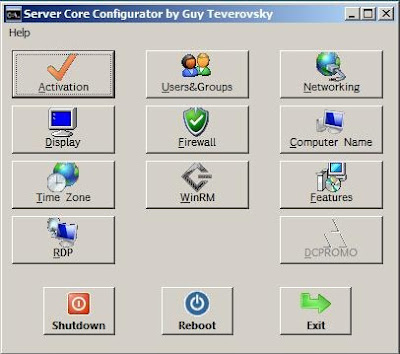
CoreConfigurator Features:
Use this site for instructional video and download.
http://www.netometer.com/video/tutorials/2008-server-core-dcpromo-coreconfigurator/index.php
If you need to configure Server Core to get your installation up and running but you're not a command-line expert then check CoreConfigurator. The download link from this page has now been blocked, click here for the reason.
Guy Teverovsky, Windows Server MVP, comes to rescue with a simple GUI utility to do all the hard work for you.
CoreConfigurator Features:
- Product Activation
- Configuration of display resolution
- Clock and time zone configuration
- Remote Desktop configuration
- Management of local user accounts (creation, deletion, group membership, passwords)
- Firewall configuration
- WinRM configuration
- IP configuration
- Computer name and domain/workgroup membership
- Installation of Server Core features/roles
Here's a screenshot of the main screen:

Use this site for instructional video and download.
http://www.netometer.com/video/tutorials/2008-server-core-dcpromo-coreconfigurator/index.php
Subscribe to:
Posts (Atom)